Registering Your License
Salient is sold two ways, and which one you bought decides both how you register the theme and how you receive updates.
| You bought | What you register with | Where to find it |
|---|---|---|
| Direct from ThemeNectar | A Salient license key | Your ThemeNectar account |
| ThemeForest | A Salient purchase code | Your ThemeForest downloads |
Registering takes a minute per site and is worth doing on every install. It confirms the site is running a licensed copy of Salient, and on a direct license it turns on one-click theme updates inside the WordPress dashboard.
Register each site as soon as the theme is active. It confirms the install against your purchase, and on a direct license it is what puts theme updates in your dashboard. Support is arranged separately, in your ThemeNectar account: see Support and your ThemeNectar account below.
Where the License card lives
In the WordPress admin sidebar, open Salient. The panel opens on its Dashboard tab, and the License card sits at the top.
Activating your license
- Pick your license type: Use the Direct license / ThemeForest toggle so the field expects the right credential. Direct licenses take a license key from ThemeNectar; ThemeForest purchases take the purchase code from your Envato downloads.
- Paste the key: Enter it in the field beside the toggle. The helper text under the field links to the right place to find it for the type you chose.
- Click Activate: The card confirms the license and switches to its registered state.
If activation does not go through, check that the site can make outbound HTTPS requests to api.themenectar.com. Some hosts block outbound connections by default. If it still fails, contact support.
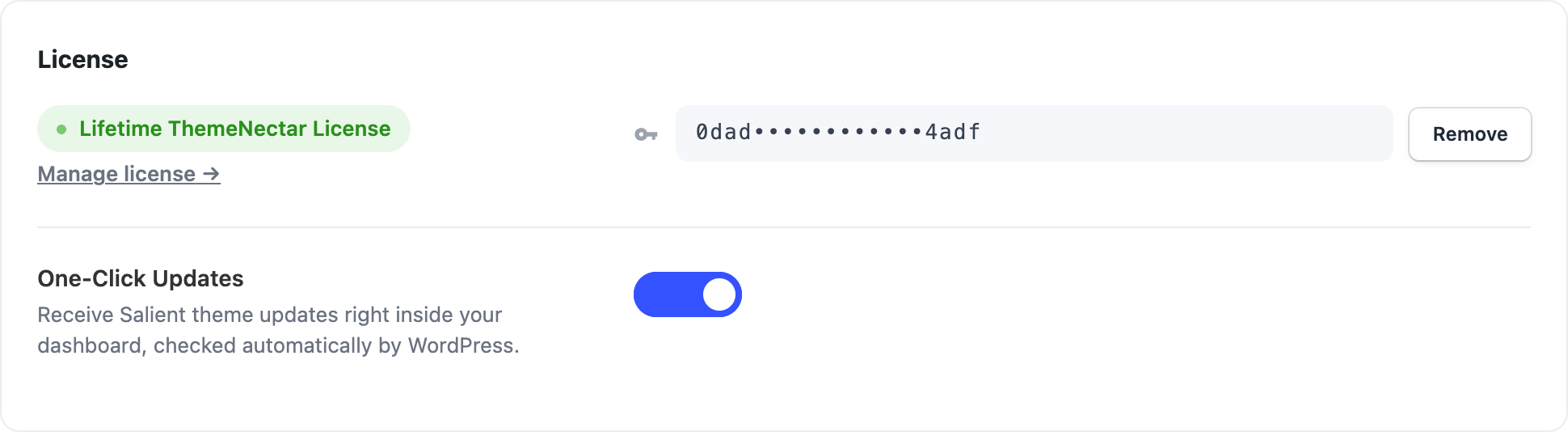
Once registered, the card shows a status badge naming the license type, the key masked down to its first and last few characters, and a Remove button. A direct license also gets a Manage license link and the One-Click Updates toggle covered below.
Finding your ThemeForest purchase code
On your ThemeForest Downloads page, open Download next to Salient and choose License certificate & purchase code, as text or as a PDF. The purchase code is inside the file.
Direct licenses have no purchase code. The key is on the Licenses page of your ThemeNectar account.
What each license type includes
| Direct license | ThemeForest | |
|---|---|---|
| One-click theme updates in the dashboard | Yes | No |
| License management dashboard | Yes | No |
| Update method | Automatic, inside WordPress | Envato Market plugin or manual re-upload |
A ThemeForest purchase stays fully licensed and supported. What it does not carry is the update channel described below, because updates for Envato purchases are delivered by Envato rather than by ThemeNectar.
One-Click Updates
On a direct license the card shows a One-Click Updates toggle. Leave it on and WordPress treats Salient like any other updatable theme: new versions appear at Dashboard > Updates and on Appearance > Themes, and you update with a single click.
The check runs on WordPress's own schedule rather than on every page load, and the result is cached for a few hours, so a brand new release may take a little while to appear. Clicking Check again on the Updates screen forces a fresh check immediately.
If you would rather control exactly when the theme changes, switch the toggle off. Updates then stop being offered in the dashboard and you can update manually whenever you choose.
Using Salient on more than one site
Salient is licensed per site, so each site you build gets its own registration. A direct license adds a place to keep track of that: the Manage license link on the card opens your account, where you can see the sites you have set up.
To move Salient from one site to another, click Remove on the site you are retiring, then activate on the new one. Removing leaves that site's content and settings untouched, and it stops its update checks.
Support and your ThemeNectar account
Registering the theme covers the install. Support is handled in your account at app.themenectar.com, and how you switch it on depends on where you bought Salient. What support covers, response times and how to open a ticket are on the Salient Support page.
Direct licenses
Support comes with the license and runs for a set period. You can see the dates on the Licenses page, and extend from the Support Plan tab when the window is close to running out.
ThemeForest purchases
Connect your Envato account once and your Salient purchases appear in your ThemeNectar account alongside their Envato support windows. That is what lets us confirm coverage when you open a ticket.
- Sign in to your account: Go to app.themenectar.com/licenses.
- Find the ThemeForest panel: Look for Bought Salient on ThemeForest? and click Connect Envato.
- Approve the request on Envato: Envato asks you to authorize the connection. ThemeNectar reads only which of its items you own and when their support runs out.
- Check the list: Your Salient purchases appear with their purchase date and Envato support window. Each purchase code is listed and can be copied straight into the theme's License card.
Updates and downloads for a ThemeForest purchase stay on ThemeForest. Connecting the account is about support and having your purchase details in one place.
If your Envato support window has ended, the account offers six months of support you can add without repurchasing the theme.