
Page Metaboxes
Every page in Salient has its own settings below the editor, separate from the site-wide defaults in Theme Options. The two most used are the page header and the full screen rows mode.
Page Header
The page header offers three background types. Each type reveals the options related to it.
- Image
- Video
- HTML5 Canvas
- Background Image: An image shown in the background of your page header. Since it is displayed full width, supply a decent sized image to ensure a good viewing experience on desktops, e.g. 1600px wide by 350px tall (or whatever you have defined as your header height)
- Background Alignment: Controls how your background image aligns within the page header
Your supplied video plays automatically on load, so use the video background responsibly to enhance your design rather than annoy your user, e.g. a video loop with no sound. To ensure cross browser compatibility you’ll need to supply both WebM and MP4 versions of your video. OGV is optional.
- Video WebM Upload The WEBM video filetype field
- Video MP4 Upload The MP4 video filetype field
- Video OGV Upload The OGV video filetype field
- Preview Image Used on mobile devices in place of the video background, since mobile devices do not allow videos to autoplay.
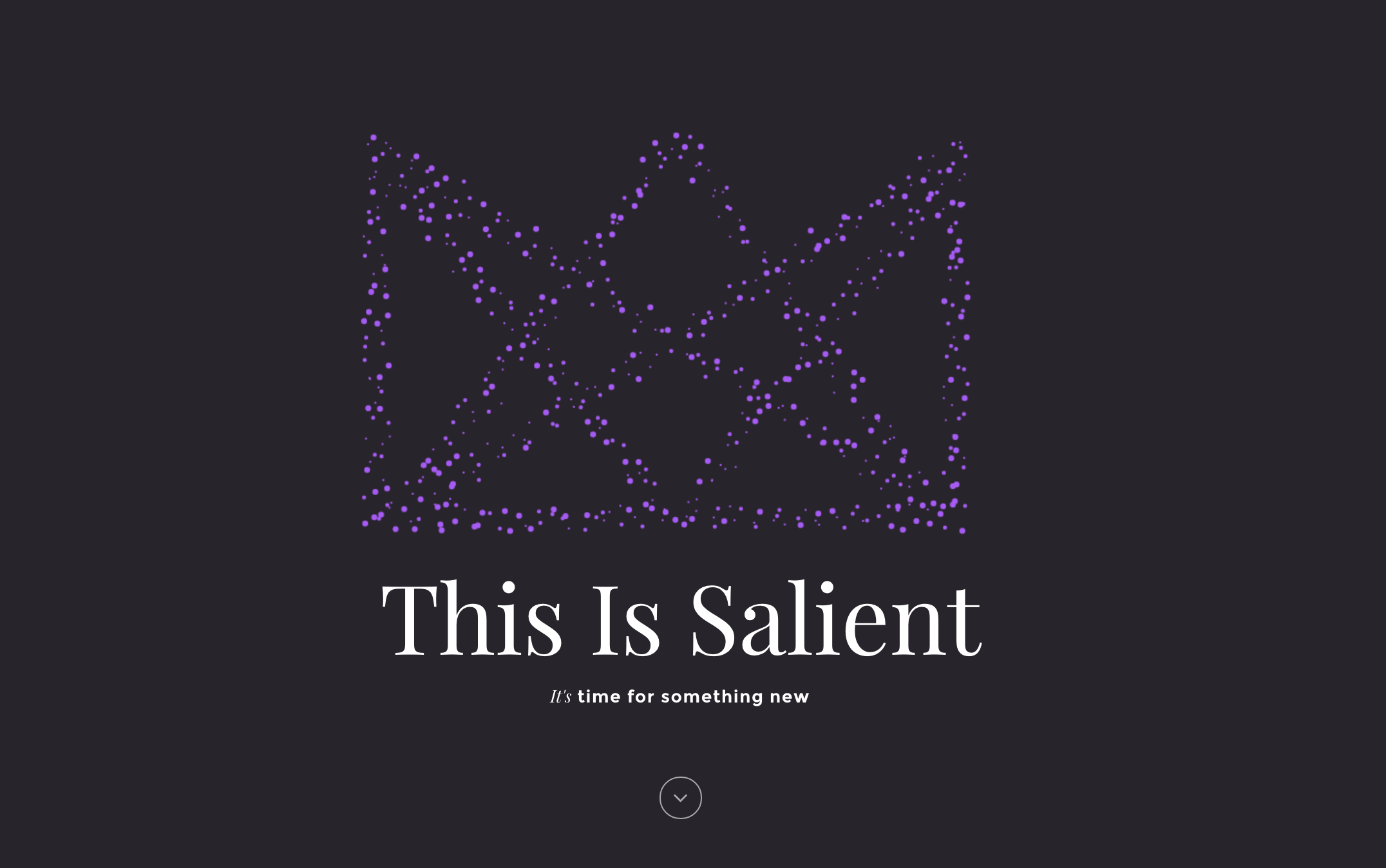
Particle Images Opens a modal where you can add images to your particle display through the WordPress media gallery interface. See the tutorial below for more on configuring your particle header.
Note: Having a background color/image set tells the theme that you intend to use the page header, and it will display even if you’ve deleted the title. Sometimes users no longer wish to use a page header but forget to delete the background color they’ve set, and can’t figure out what’s causing the page header area to remain.
General options
- Scroll Effect: An optional effect applied when scrolling down. The Box Roll effect can be seen here and the parallax header can be seen here.
- Page Header Height: Sets how tall your header displays on desktops. Enter the value in px but don’t include the “px”, e.g. “350”
- Fullscreen Height: Makes your page header display fullscreen, filling the window the user is browsing in.
- Page Header Title: The title displayed within the header
- Page Header Subtitle: An optional title displayed smaller under the main title
- Text Effect: An optional animation that brings your page header title/subtitle into view on page load
- Header Content Alignment: Controls the horizontal and vertical alignment of your page header title/subtitle
- Page Header Background Color: An optional background color for the page header
- Page Header Font Color: Sets the color of the page header title/subtitle. The default is white
The following two options only appear when you have the Use Transparent Header When Applicable option turned on in the Salient options panel > Header Navigation > Transparency tab. To learn more about how the transparent navigation effect works, see the section in the documentation about it.
- Disable Transparency From Navigation: Deactivates the transparent effect on your header navigation when it would otherwise be enabled by a setup that triggers it, i.e. using a page header with a supplied BG color/image or a Nectar Slider at the top of your page in the Salient WPBakery Page Builder.
- Force Transparency On Navigation: Triggers the transparent effect regardless. Useful when you’re not using an applicable setup but still want the header to be transparent at the top of the page, e.g. you’re using a full width background Salient WPBakery Page Builder row at the top.

Page Full Screen Rows
The page full screen rows option turns all of your rows in the Salient WPBakery Page Builder into fullscreen sections that are scrolled between while always remaining 100% in view. There are many configuration options for the animations and general styling, listed below. Salient also provides multiple demos showing off this feature, which can be seen here:
Video Tutorial
If you’re the visual learning type or want to see Mr. Nectar configure some sections to get a better feel for the page full screen rows, watch the video tutorial below.
Configuration options
- Animation Between Rows Sets the animation seen when scrolling/transitioning between your rows.
- Animation Speed Controls how fast the animation occurs
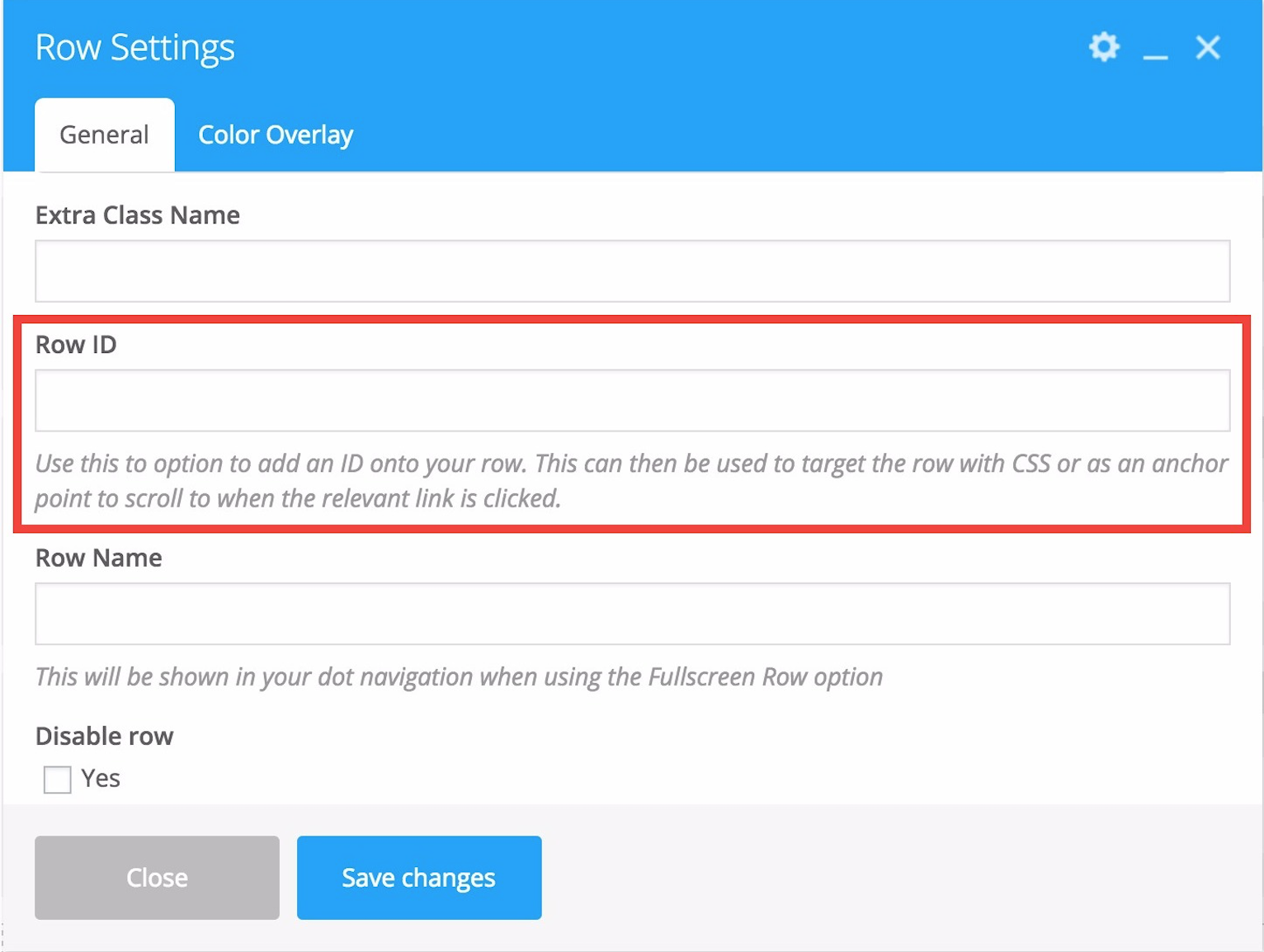
- Add Row Anchors To URL Adds anchors to the end of your page URL when switching between sections. The anchors are populated by the name you supply for each Row in the ID field. We recommend using this option, since it makes navigation easier for everyone: your users can link to specific sections in your page and use the browser back/forward button history. You can also link to specific sections on your page from other areas of your site.
- Row BG Image Animation Affects all background images you have set in your page builder rows. The animation is triggered upon reaching each section.
- Dot Navigation Controls the styling of the navigation used to change between your sections. There is also an option to hide the dot navigation if you don’t want it, e.g. you’re only using one row
- Row Overflow Dictates what happens when content in your row takes up more space than is available on the screen. You can choose either to hide the extra content or to give the user a scrollbar. Since almost every section ends up overflowing on mobile devices, the provide scrollbar choice is used on devices under 1000px screen width.
- Page Footer Sets what to use as a footer for your page, if anything at all