Salient Menu Options
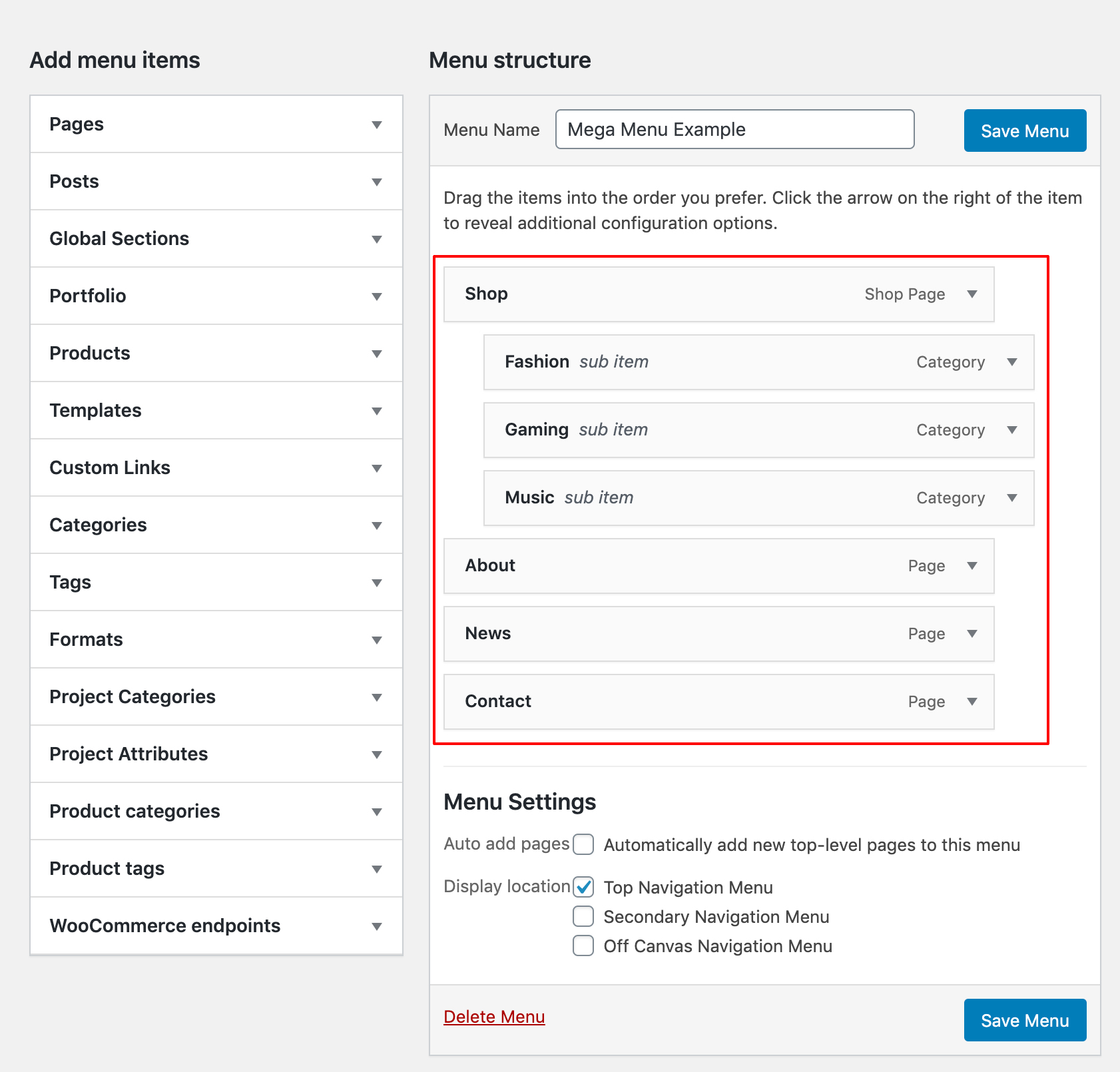
Salient adds its own settings to every item in a WordPress menu, on the Appearance > Menus screen. They control how that item looks, and, on a top level item, whether its dropdown becomes a full mega menu.
This page covers where those settings live and what each one does. Mega menus, which are built from the same modal, have their own page.
Where the options live
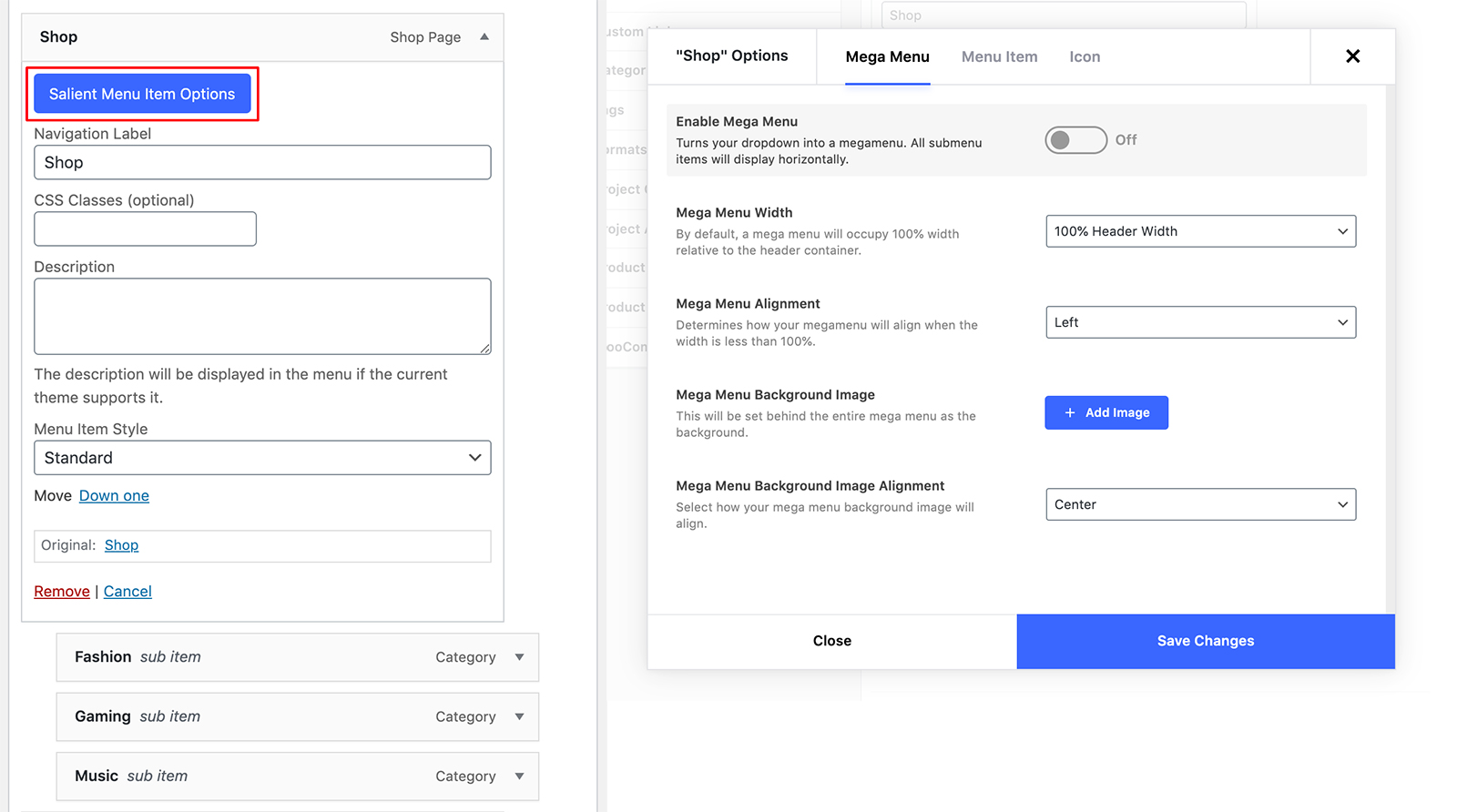
Go to Appearance > Menus and open any menu item. At the top you will find a Salient menu item options button, which opens a modal of settings for that item alone.

Two things to know about the modal:
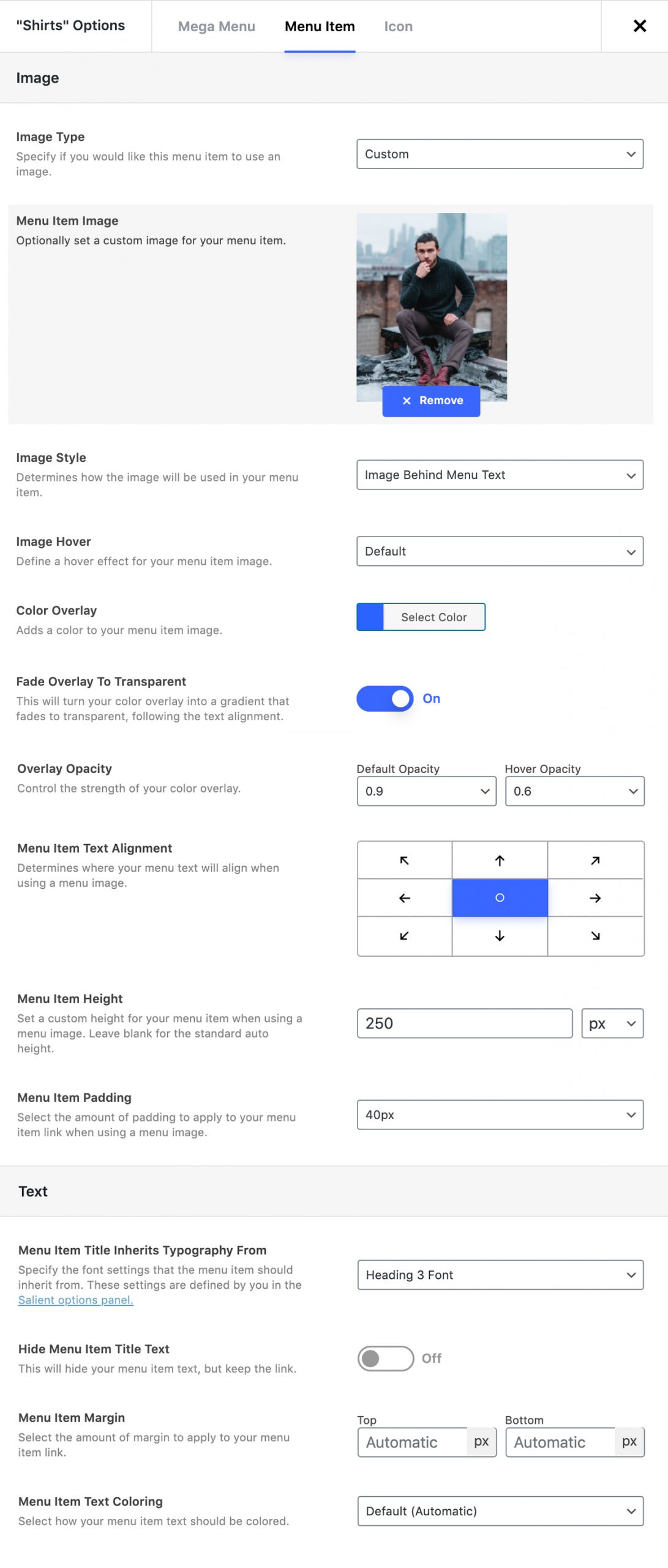
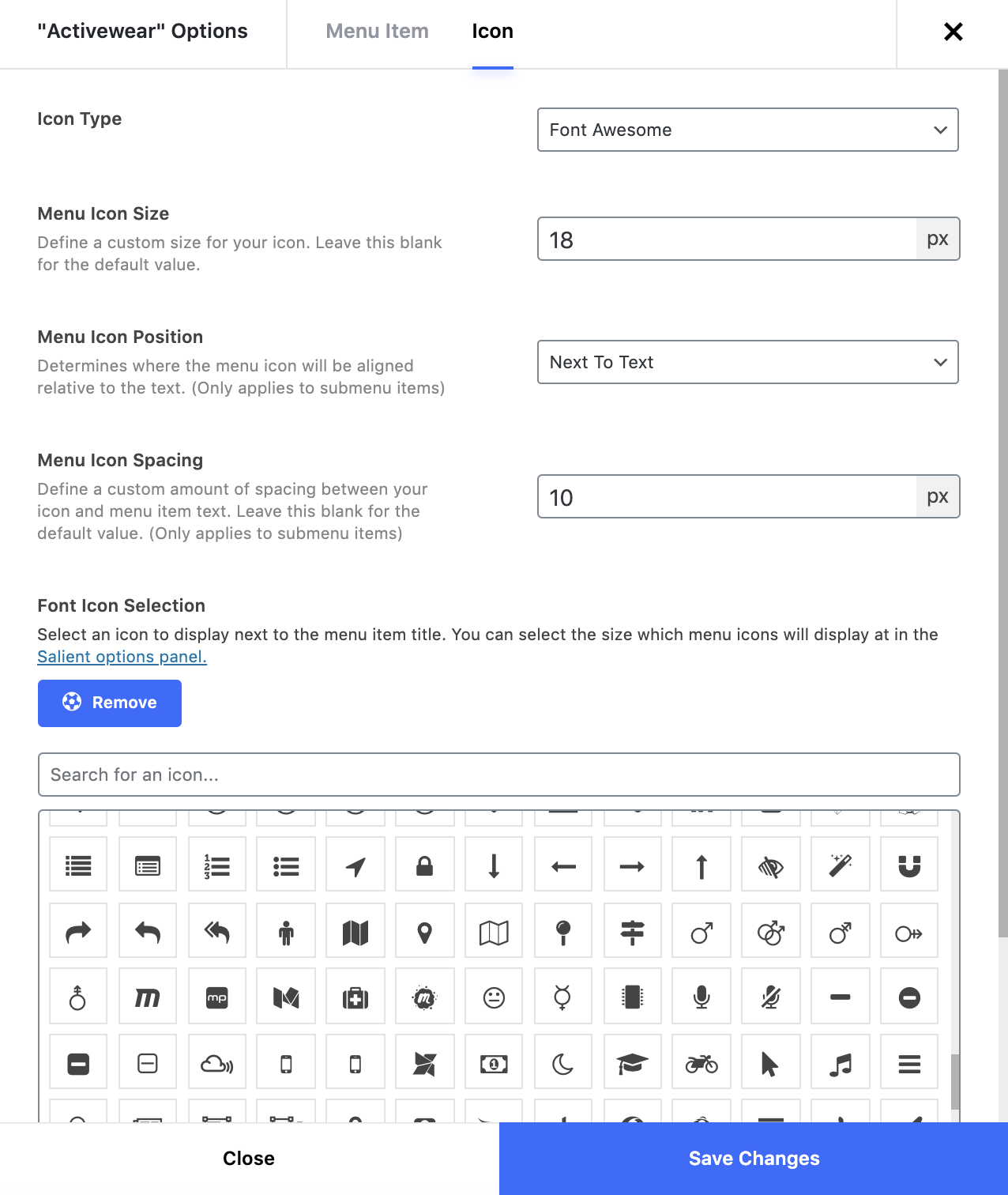
- Settings are grouped into three tabs across the top: Mega Menu, Menu Item and Icon.
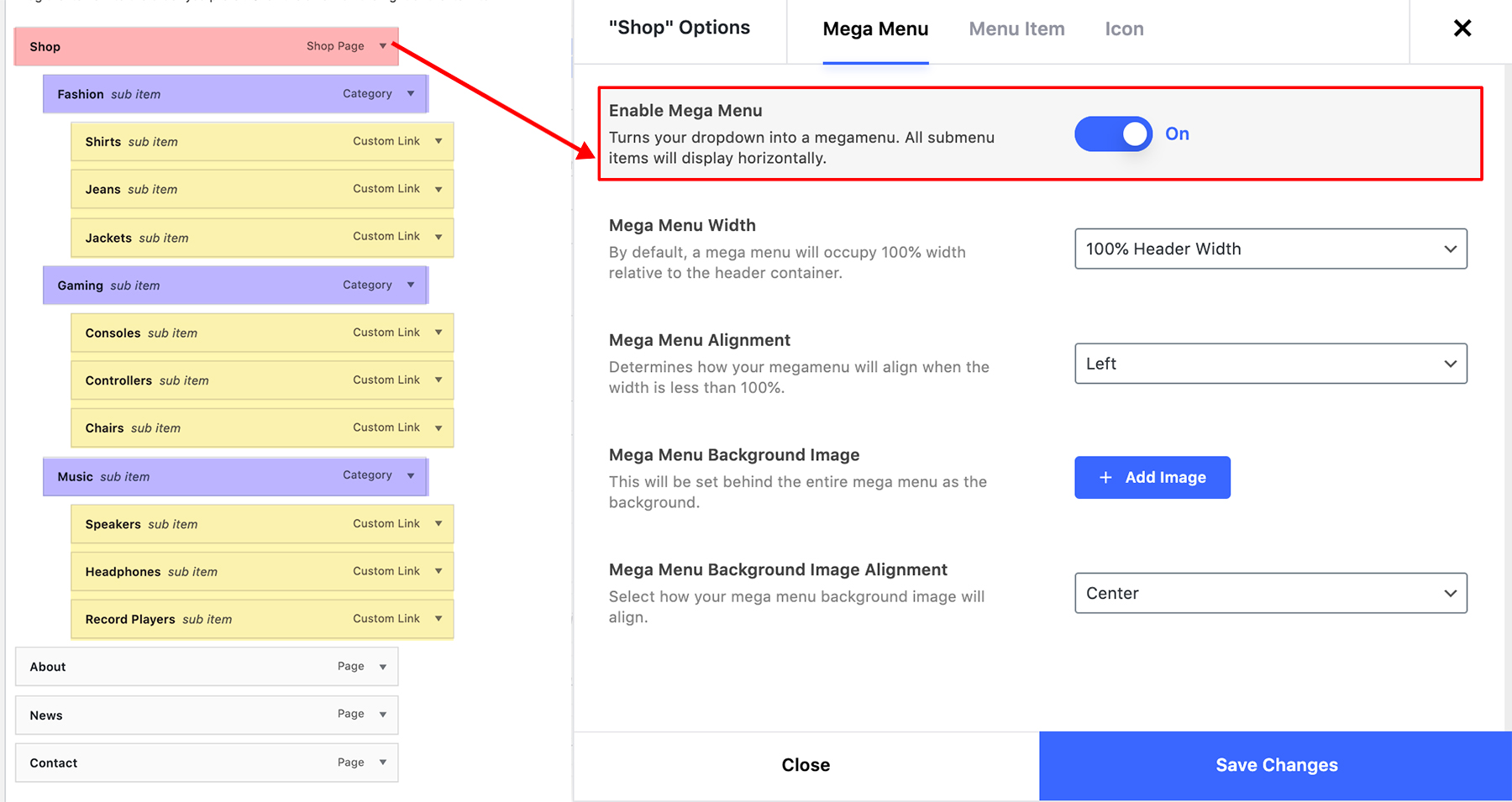
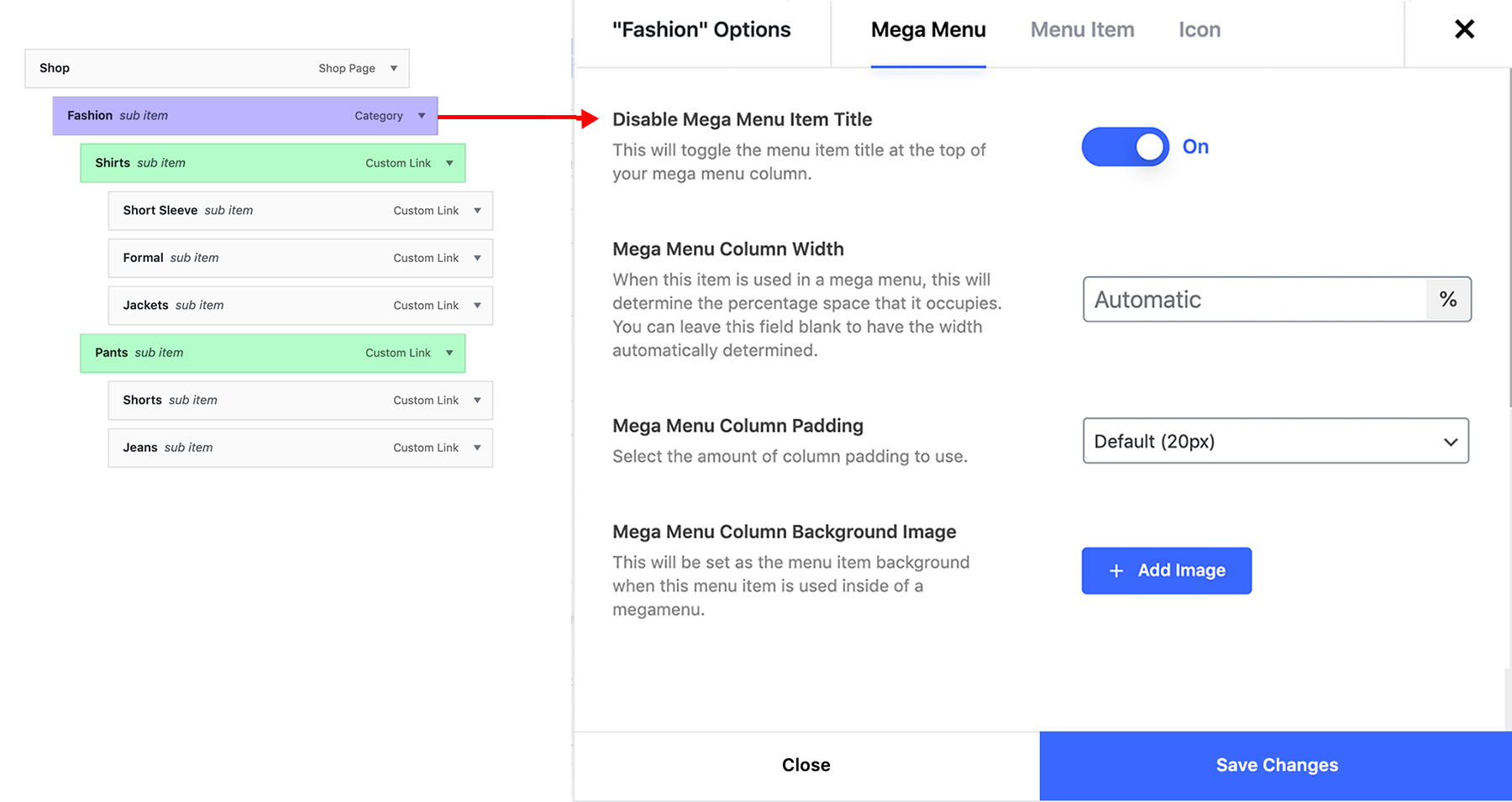
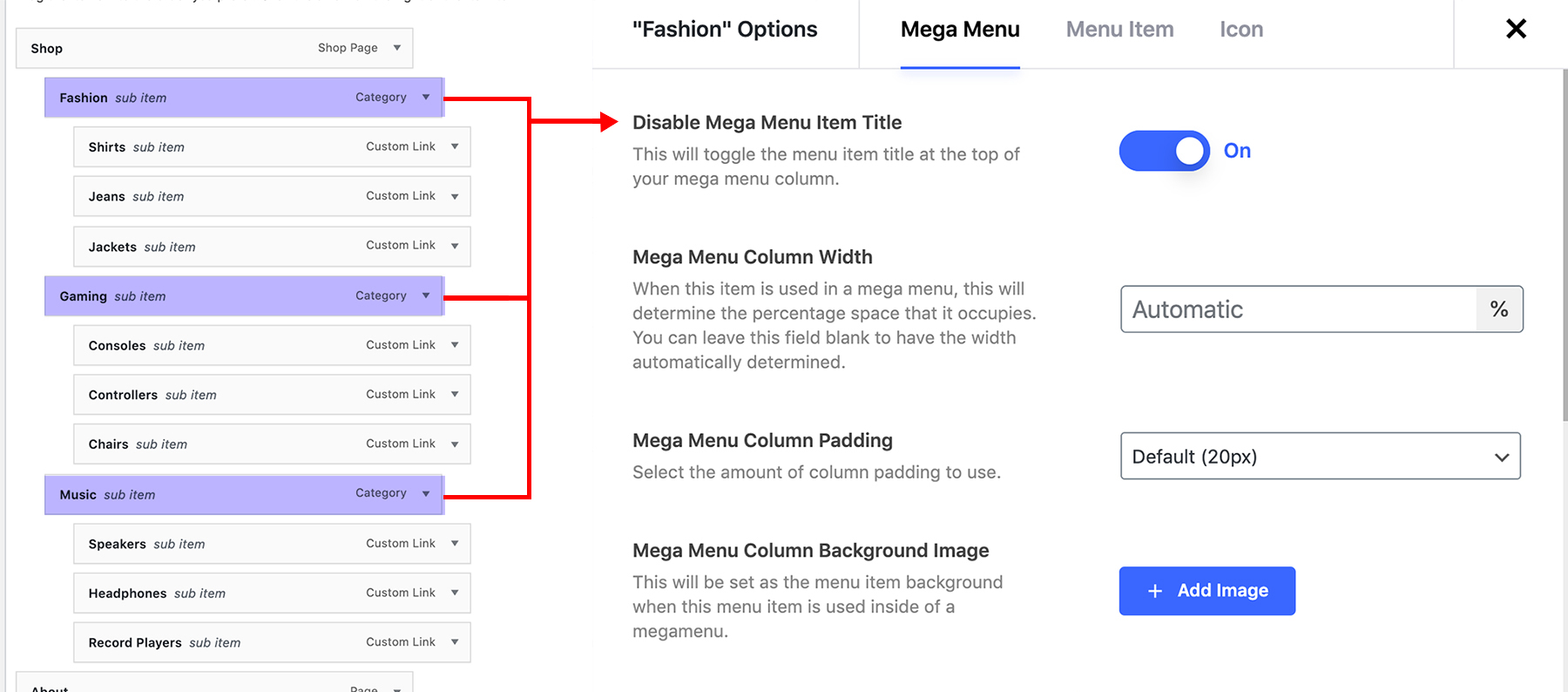
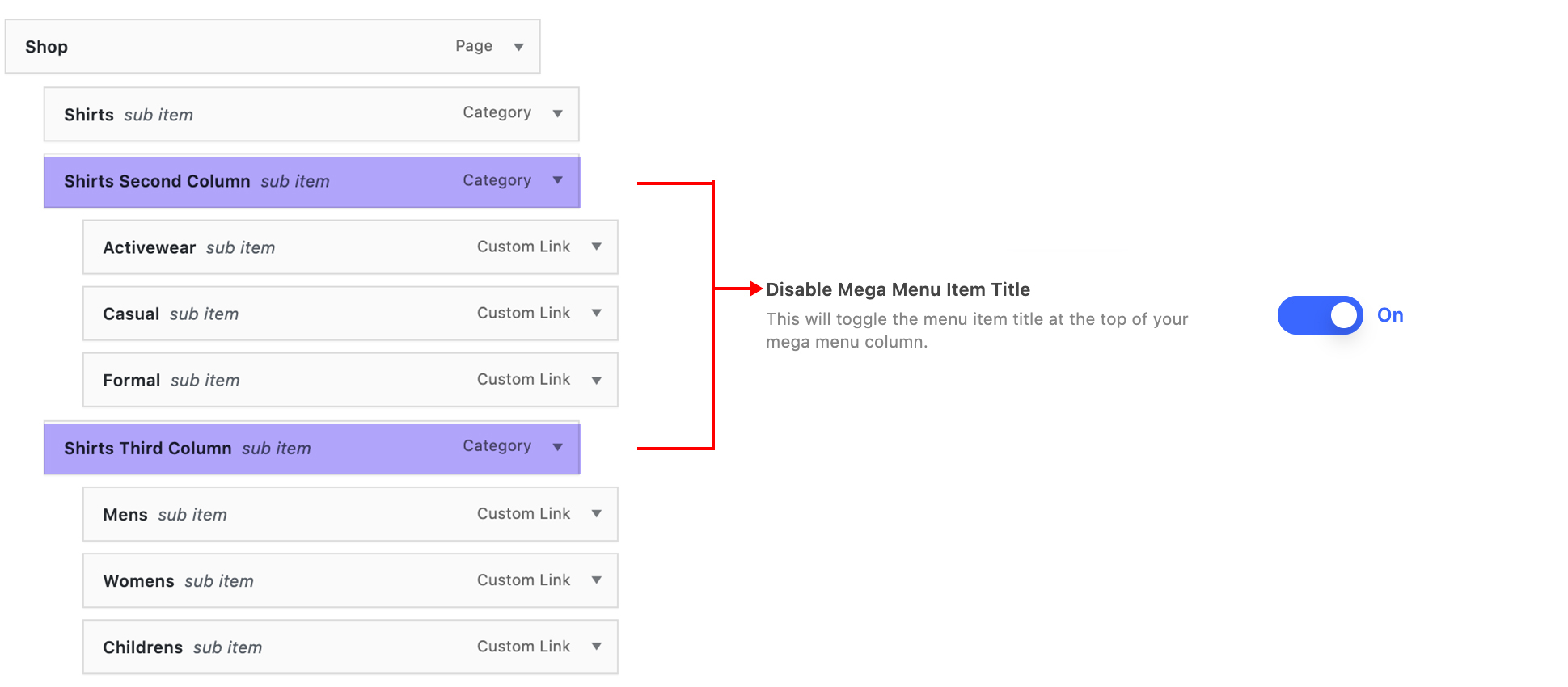
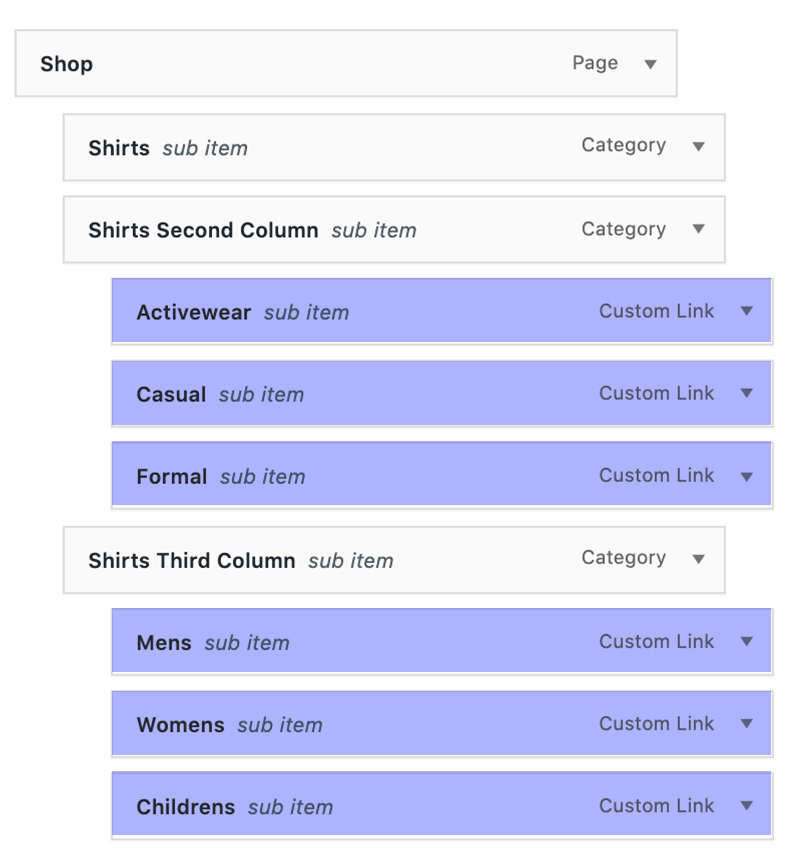
- The available settings depend on how deeply the item is nested. Only a top level item can turn on a mega menu. Only an item inside a mega menu gets column settings such as Mega Menu Column Width.
Nothing here is global. Every setting applies to the one menu item you opened.
What you can set on a menu item
These apply to the item itself, whether or not it has a dropdown. They live on the Menu Item tab, apart from the icon settings, which are on .
| Setting | What it does |
|---|---|
| Menu Item Link Button Style | Renders a top level item as a button in the header. See Header Button Links |
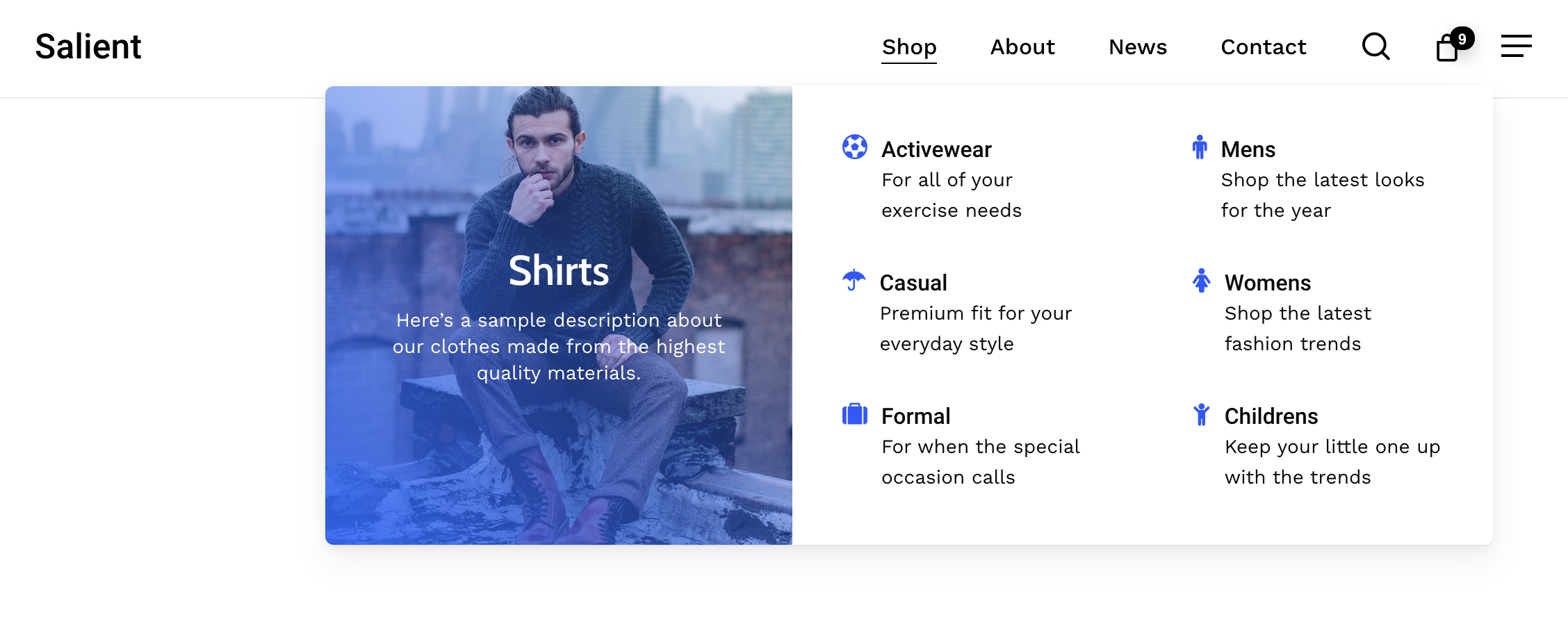
| Font Icon Selection or Custom Icon Selection | Puts an icon beside the item's label. Available on any item, at any depth |
| Persist In Mobile Navigation Header | Keeps a top level item in the mobile header instead of moving it into the off canvas menu |
Showing a description as a subtitle
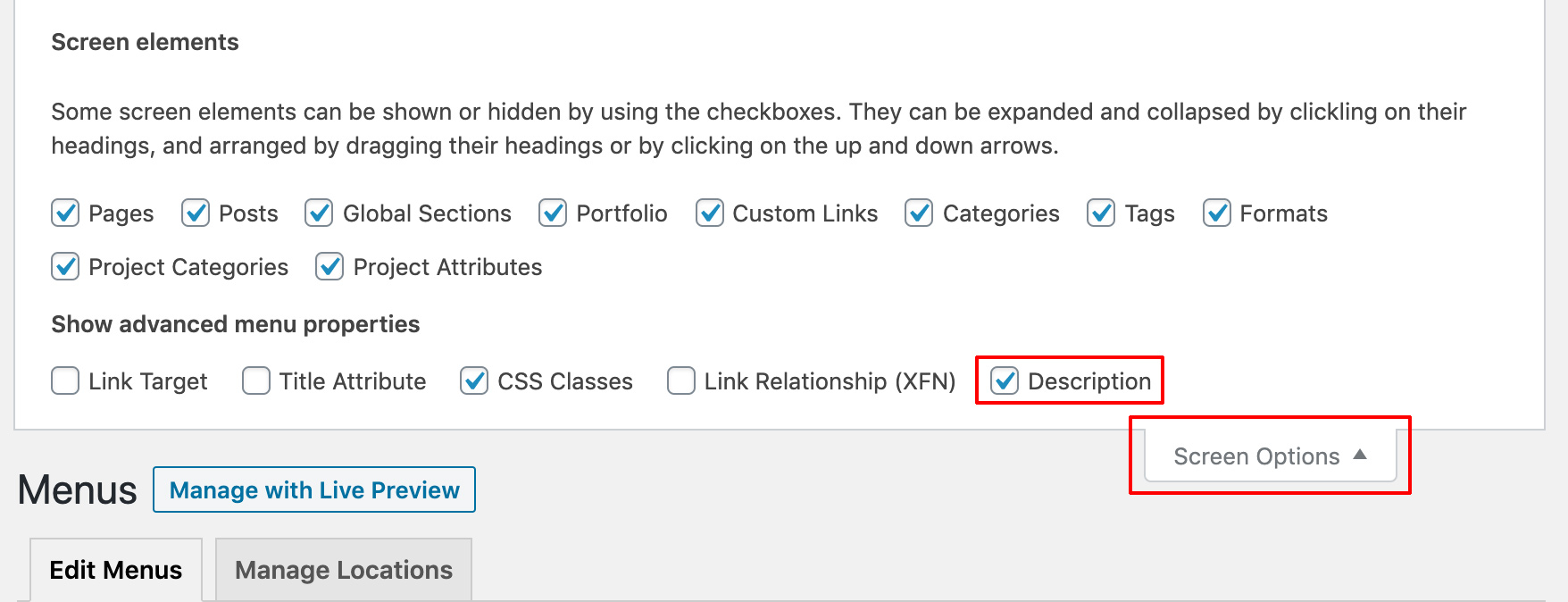
A menu item can carry a line of subtitle text under its label, taken from WordPress's own Description field. If you cannot see that field, two things need to be on:
- The Description field, ticked under Screen Options at the top right of the Menus screen.
- Header Dropdown Display Descriptions, in Salient Options > Header Navigation > Dropdown/Megamenu.
Mega menus
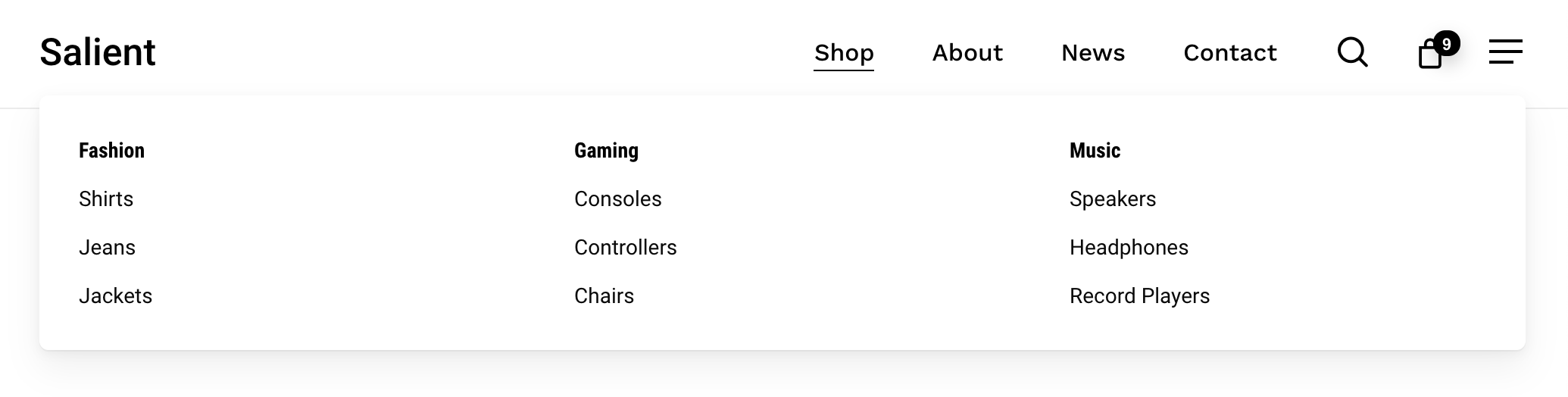
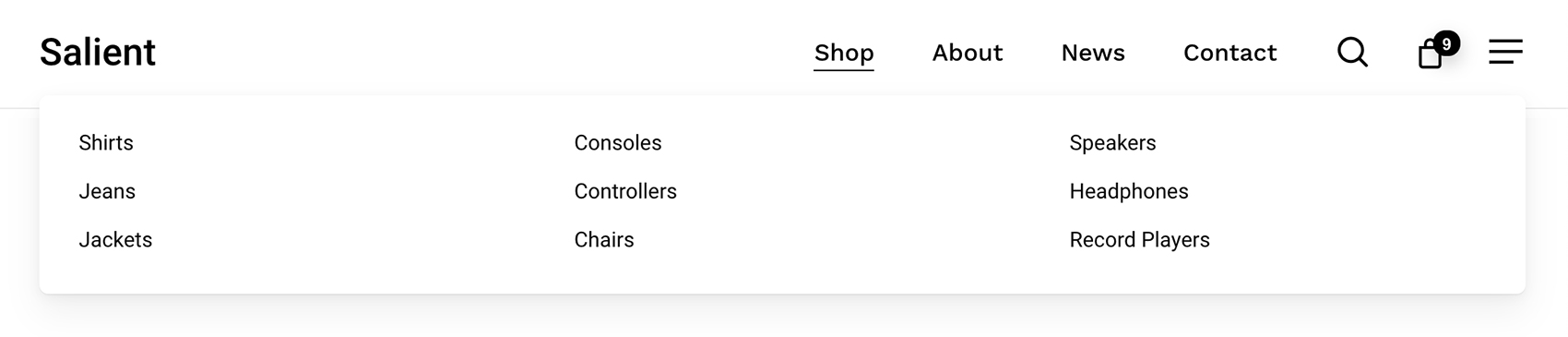
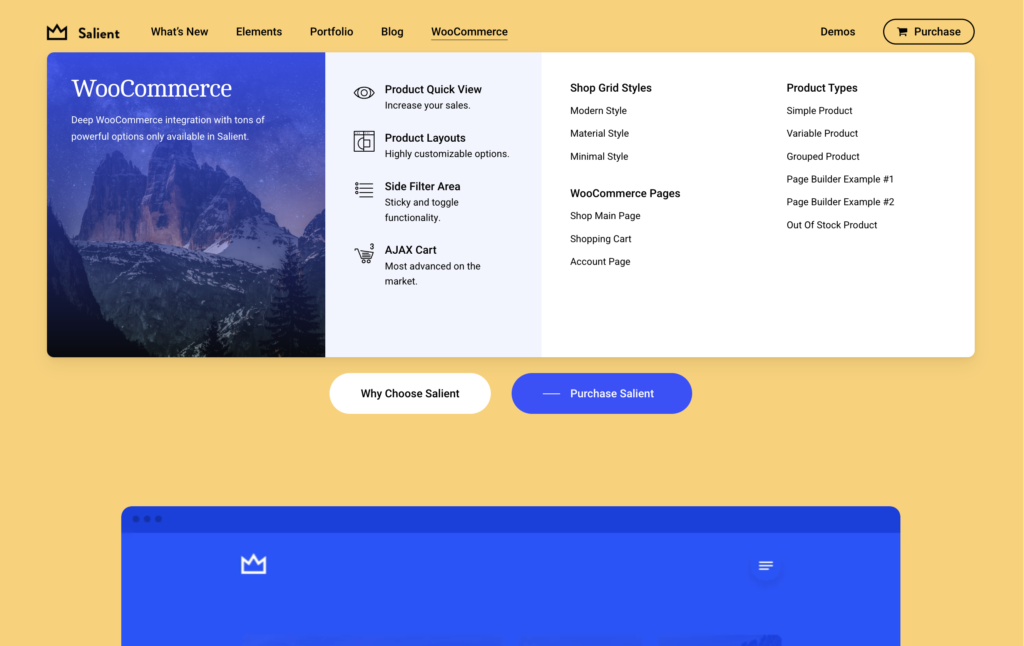
Turning a dropdown into a full width panel is its own job, with two different ways to do it. See Mega Menus.