Main Footer Area Allows you to toggle the display of the footer widget area (conifgured in Appearance > Widgets)
Footer Columns Sets the numbers of columns that will be used in your footer widget area
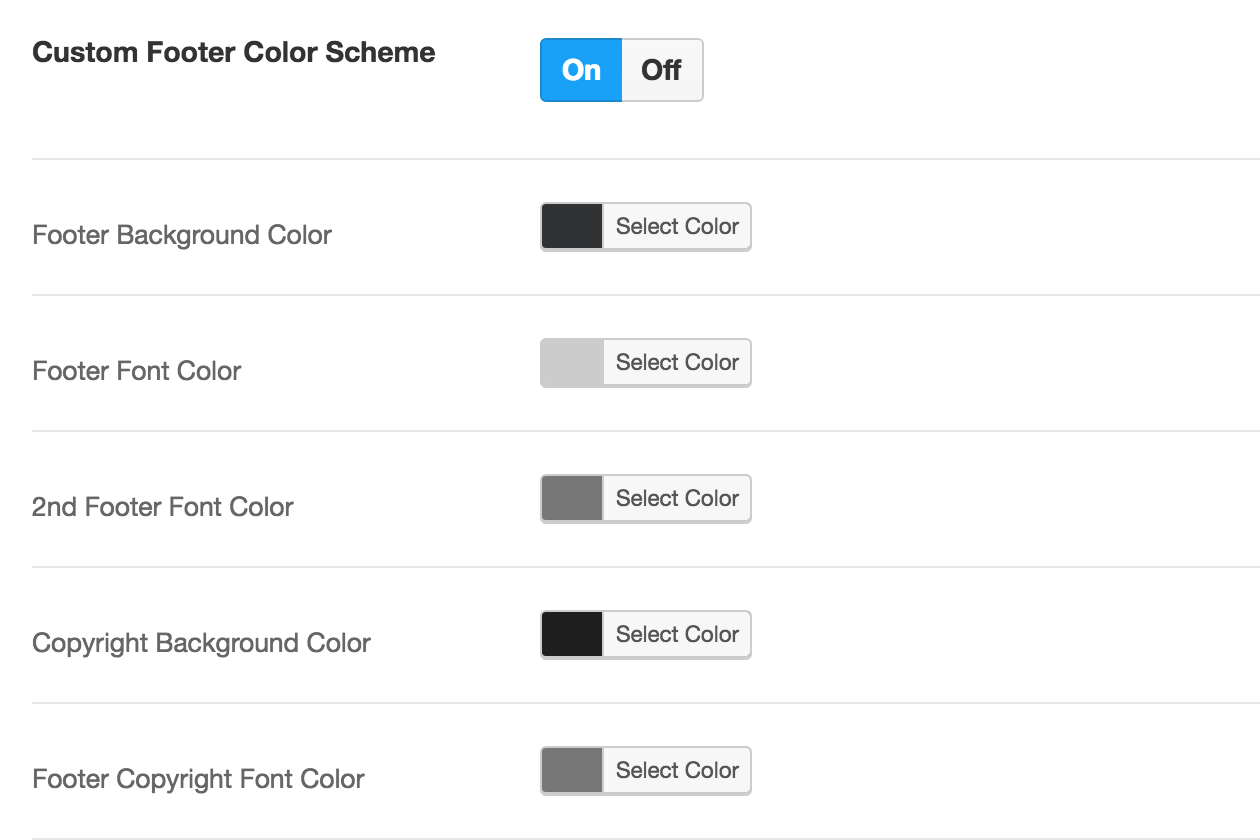
Custom Footer Color Scheme Allows you to set the color scheme or define your own for your footer. By selecting “custom” for the color scheme you’ll have color pickers for everything related to the footer
Footer Add Line Above Copyright This will add a thin line to separate your footer widget area from the copyright section
Footer Reveal Effect This to cause the footer to appear as though it’s being reveal by the main content area when scrolling down to it
Footer Reveal Shadow When using the Footer Reveal Effect you also have the option to define if you’d like a shadow to be cast on it from the main content area of your website
Disable Footer Copyright Area This will hide the copyright bar in your footer
Footer Copyright Section Text Please enter the copyright section text. e.g. All Rights Reserved, Salient Inc.